 COME
COMEInstall COME APK: From App Page to First Open
Follow the installation sequence one stage at a time: app page, completed file, Android installer, then first open. The button opens the COME app page; it does not skip Android's installation prompts.
COME App at a Glance
- App name: COME. Platform covered here: Android APK.
- Listed version: v1.12. Listed file size: 3.1MB.
- Listing checked: 20 September 2026.
These are the current app-listing details, not a measurement of a file on your phone. The download size is different from the space used after installation. A check date is also different from a release date. Compare the version offered at the app entry with the version already installed before deciding to update.
Locate your current stage
If you have only opened a browser tab, begin at step one below. If Downloads already shows a completed APK, begin by reading that entry and opening the file. If Android says installation is complete, open the installed app rather than downloading again. This avoids duplicate files and makes a failure easier to describe.
Prepare the phone and the account
Use the Android phone on which you intend to install the app. Have a stable connection and enough free space for both the saved package and Android's installation work. A listed 3.1MB file does not mean 3.1MB is all the free storage you need. Check your Android version in the device settings and compare it with the requirements shown for the offered release; do not assume a model name alone proves compatibility.
If COME is already installed, make sure you know how to return to your existing account. Record the version and the symptom you are trying to fix before changing anything. There is no need to clear app data, reset the phone or uninstall a working copy as a preparation step. Those actions can make account recovery harder and do not establish whether a replacement file is suitable.
Download and install in sequence
- Open the COME app page using the button. The destination is a web page. Wait for it to load and identify the Android download option if one is available; a new browser tab by itself does not mean a file has been saved.
- Read the offered app name, version and device requirements. Start one download and inspect the browser Downloads screen. Wait for a completed entry rather than opening a partial file or repeatedly pressing the download control.
- Open the completed package from the download entry. Android should show its installation interface. Read the app identity and the exact message on screen; an error before the installer appears is different from a rejection inside the installer.
- If Android asks about installing from this source, identify the browser or file app named in that permission screen. Proceed only for the source you deliberately chose and trust. Menu wording varies between devices. Keep Google Play Protect and other device protections enabled.
- When installation is allowed, follow Android's prompt and wait for its completion message. If it warns that the app is harmful or blocks an unsafe installation, stop and follow the device guidance. Do not use another mirror to evade the warning.
- After installation completes, open COME and check that the expected app loads. Use the existing-account route if you already have an account, and the registration route only if you need a new one. A successful install is not proof that login or a reward milestone is complete.
When the next screen is not the one expected
A login page can appear after the app opens, while a saved-file prompt belongs earlier in the sequence. Note the last successful action and the exact next screen. If the page returns to the browser with no download entry, inspect the app page's offered options; if the installer appears, work with the Android message. A connection problem after opening the app is not evidence that the package failed to download.
Update without losing track of the working version
COME Settings includes Check Update alongside language and sound controls. Use that action to look for an update, then compare an actual version number with the installed version. The words Latest Version are a status label, not a version number. Keep the original file source and account access in view if a different version is offered.
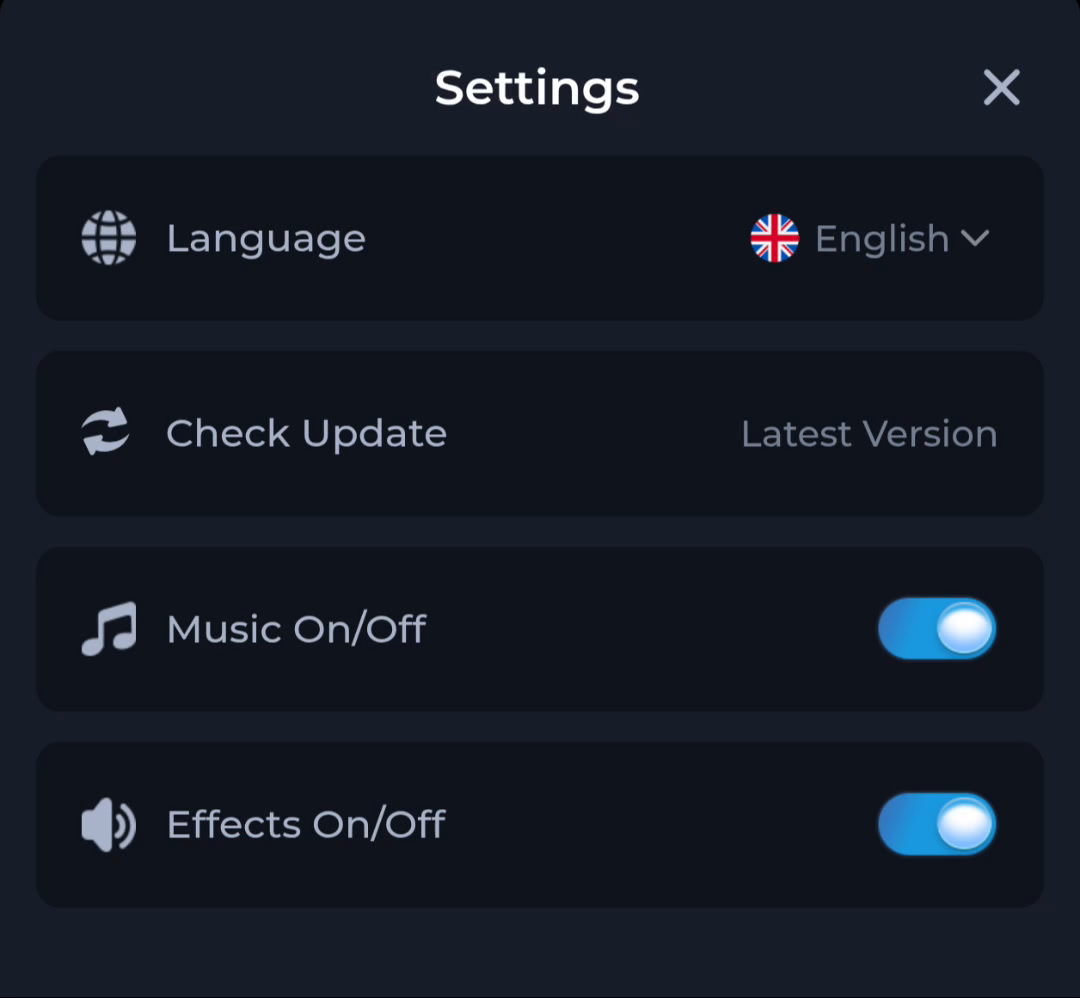
If an update is rejected, record the message before retrying. A damaged transfer, incompatible release or mismatch with an existing app can lead to different failures. Do not diagnose a signing mismatch from the words App not installed alone. Repeated failure with the same completed file is a reason to seek source or device guidance, not to keep erasing data.
Respond to the stage that failed
No download entry: return to the app page and identify whether you opened a page, started a transfer or only saw a prompt. Interrupted entry: restore a stable connection and use the browser's supported retry option. Installer rejection: keep the exact wording and compare device requirements. Installed app that will not load: test the connection separately and use the app's help if it is accessible.
An APK is an Android installation format. Renaming it does not make it installable on an iPhone, and saving it on a PC does not turn it into a Windows application. A Play Store result with the same name is a separate listing to identify; it should not be assumed to be the same product. Use a platform-specific route only when it is actually offered by the intended service.
Installation references and focused help
Google recommends getting apps from Google Play and keeping Play Protect on. Its Android guidance explains the risks of other sources; Play Protect checks for harmful behaviour. A scan result, HTTPS connection or familiar logo is useful in context, but none replaces identifying the file and its publisher.
COME Button Opens a Page but No APK Downloads
Find the Completed COME APK on Your Android Phone
Android Source Permission or Security Warning: Know the Difference
Read Google Android installation guidance
Read about Google Play Protect
Continue from the step your phone has actually completed. The button below opens the COME app page so you can review its current Android option.