 COME
COMECOME Explore, Account and Settings: Choose the Right Menu
Use Explore for content browsing, the account menu for your own activity and Settings for preferences or update checking. Choosing the right area saves unnecessary downloads and account changes.
Explore answers what to open
Explore groups game covers and category entries. Casino, Fantasy, Rummy and Sports are separate tabs in the visible interface. If you are looking for a familiar game, use its name and cover to locate it; if you are interested in a sports topic, begin with the relevant category.
The image on a card identifies an entry rather than replacing its rules. A red aeroplane identifies Aviator Originals, while Mines uses a gem and mine. Open the selected item's information before interpreting its controls, participation conditions or scoring.
Account activity answers what happened
The menu separates Account, Transactions and Game History. An account question concerns the account being used. A transaction question concerns the relevant transaction record. A previous game action belongs with Game History. Write down which of those tasks you mean before opening a help request.
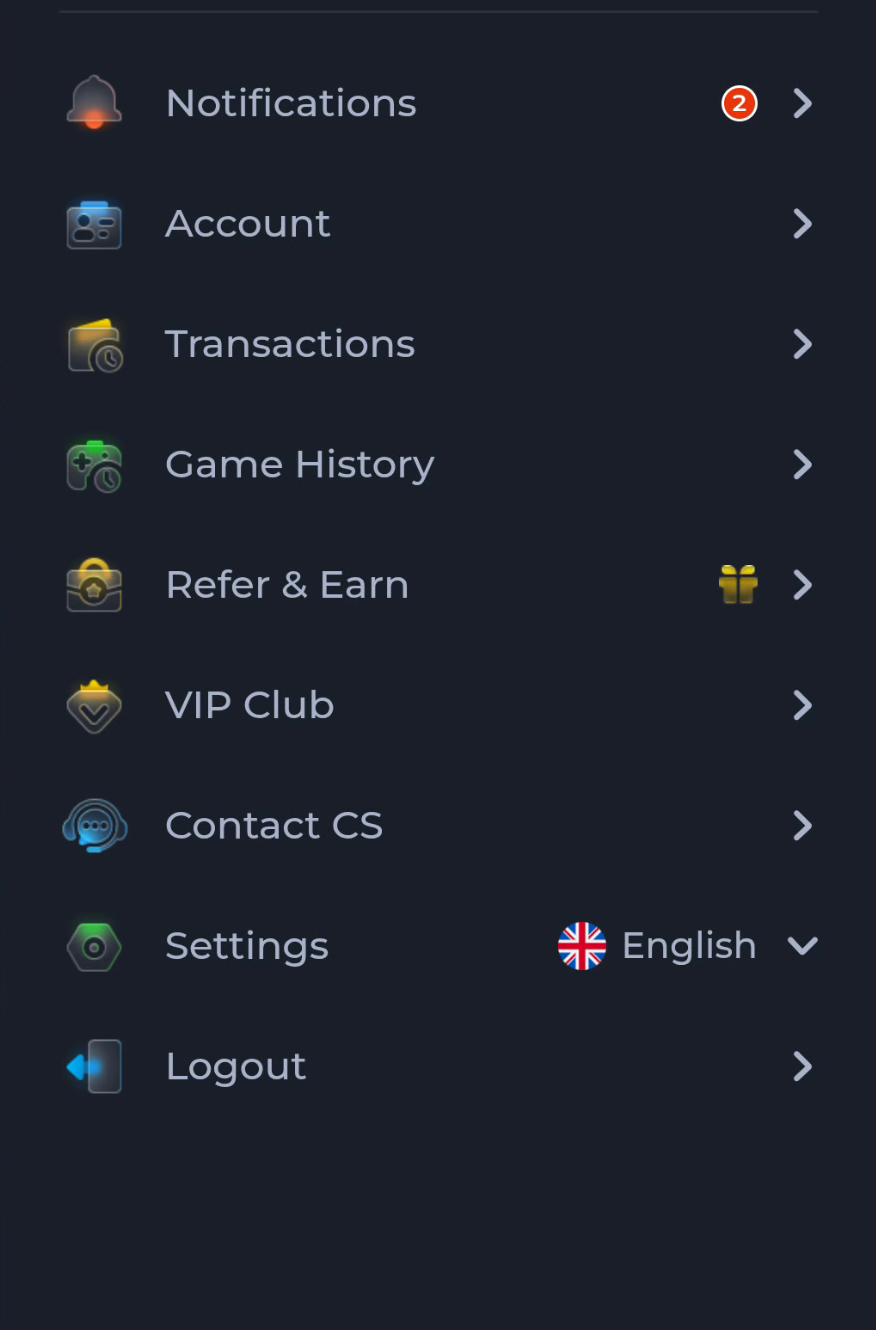
Suppose the app loads normally but you want to find a past action. Downloading another APK does not inspect that record. Return to the appropriate activity section and retain the date and description needed to identify it.
Settings answers what to change
Language, Music On/Off and Effects On/Off are preferences, while Check Update addresses an app release question. A change to sound or language is not a reason to replace the installation. Use one control at a time and check the effect before making another change.
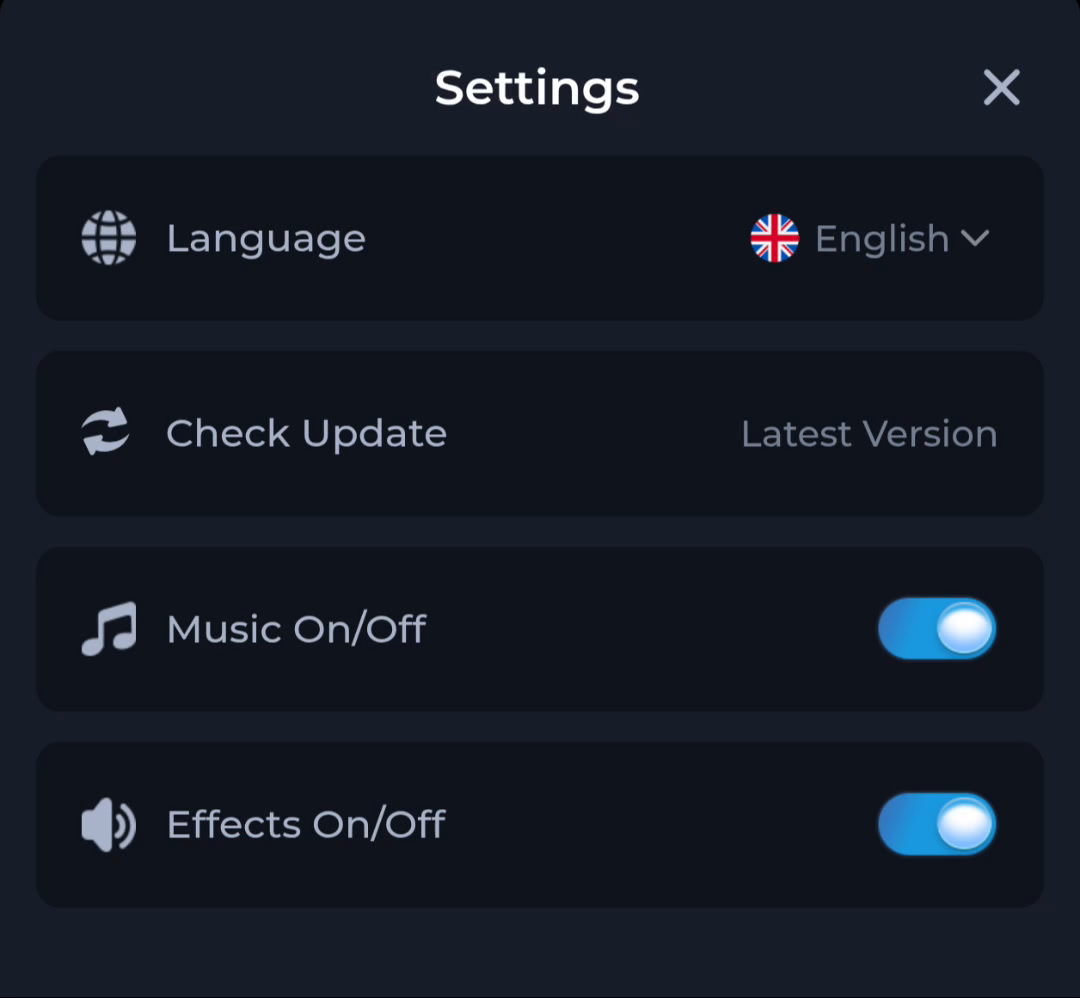
The words Latest Version beside Check Update are a status label, not a version number. If you need to compare releases, record the actual installed version through the phone's app information and compare it with the offered package.
Help answers where to ask
Contact CS is the menu route for product assistance. Customer Center groups topics and tickets. If the issue is access, choose the relevant account or General topic; if it is a loading problem, read Network Issue. A support topic is more useful when it matches the stage that failed.
Keep installation, account and activity details separate in the explanation. “The file completed, Android installed it, but this screen will not load” gives a clearer starting point than “download broken” after the app has already opened.
A short first-use route
Open the app, identify the content category you want, and read the chosen item's information. Use the account menu only when the task concerns your own records. Adjust language or sound in Settings if needed. This sequence leaves account changes and update checks for the situations that actually require them.
Know when to stop
You have chosen correctly when the screen addresses the task you intended: content, account activity, a preference or help. Return to the menu if it does not; do not compensate by downloading again.